Typpz Beta logo

Here is an extensive tutorial on how you can create a great looking web 2.0 logo (like the one above that I created for the tutorial). Open Adobe Photoshop and create a new file (file>new): 4500×4000 pixels at 300dpi is a nice resolution to choose if you want your logo to be printable. It will be nice to choose this resolution also for this tutorial to have the same output with stroke points and other blending options that are affected by image size.

  1. Choose the type tool and type anything you want in uppercase (I typed Typpz as you see :) ). Duplicate the layer (right click on the type layer you created>duplicate layer).
  2. Choose the new Type Copy layer (in my case Typpz Copy as I typed Typpz) and right click>blending options.
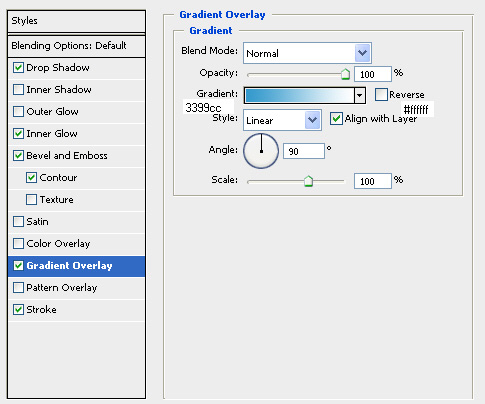
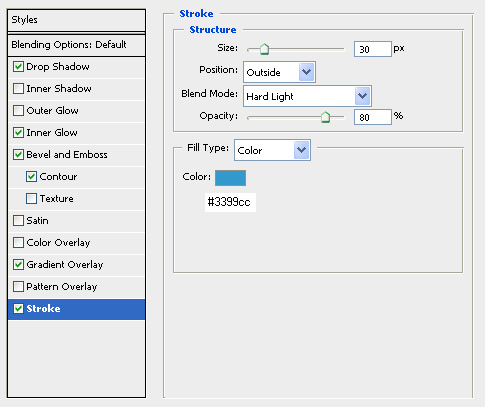
  3. Apply Drop Shadow, Inner Glow, Bevel and Emboss (with Contour), Gradient Overlay and Stroke with the setting you see in the screenshots below.

copy 1

copy2

copy3

copy4

copy5

copy 6

  1. Select the eliptical Marquee Tool and draw an eclipse like the one below. Create a new layer and fill the eclipse with white color (#ffffff) using the paint bucket tool. Set the opacity for the white filled eclipse layer to 30%.
    ec
  2. Choose the Type layer (not the copy one that you were working on in steps 2-3) and click edit>tranform>flip vertical.
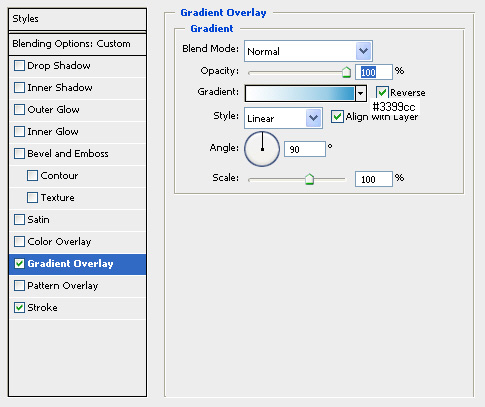
  3. Using the move tool or your keybord bring the fliped layer exactly below the type copy layer, so letter ends are touching each other like in my logo and then right click on type layer>blending options and apply the setting for gradient overlay and stroke as you see them in the screenshots below. Set the layer opacity to 40%.
main1

main2

  1. Now lets create the beta drop. Choose the type tool and select the Windings font. Type shift+s and then right click on this layer (its name should be “S”)>blending options and apply drop shadow, gradient overlay and stroke as you see them below.

drop1

drop2

drop3

  1. Choose type tool and type beta (or anything you want) and place the layer inside the drop as in my logo. Change the text color to white (#ffffff).
  2. Select the Type layer (the typpz layer for my tutorial-not the copy one!) and select layer>arrange>bring to front.

Your logo is now ready. Here you can download the .psd source file (lower resolution than the one I used for the tutorial because the default file was huge) to see the result and help you build something similar. The colors I used for the logo are printed on the screenshots. Here is the second part of Web 2.0 logo creation tutorials.

UPDATE: Video guide for this tutorial is available.

Tags: , , , , ,

Related posts:
Web 2.0 logo creation (video guide)
Create a Web 2.0 logo using Abobe Photoshop part 2
Create text logos using Adobe Photoshop
Digg effected!
Create a skype-like logo using Adobe Photoshop

50 Responses to “Create a Web 2.0 logo using Abobe Photoshop”

  1. Robert Says:

    Nice work, interesting workthrough – see you on iconbuffet :-)

  2. Create text logos using Adobe Photoshop Says:

    [...] About Create a Web 2.0 logo using Abobe Photoshop [...]

  3. Create the web 2.0 reflection effect with Adobe Illustrator Says:

    [...] days before, I wrote a tutorial on how you can build a web 2.0 logo with Adobe Photoshop. Here is another one for adding the reflection effect in a logo (like mine [...]

  4. Digg effected! Says:

    [...] the previous two days you may had noticed a slow down in our site. This was caused as the web 2.0 creation tutorial got dugg and stumbled. The huge blow was from stumble upon. We had 400 visits in one minute, which [...]

  5. Tutorial de un Logo al estilo web 2.0 y otro para crear el efecto de Reflejo | Blog Vecindad Gráfica Diseño Gráfico Says:

    [...] En este sitio nos muestran un tutorial para crear un logo al estilo Web 2.0, hecho con Photoshop: Create a Web 2.0 logo using Abobe Photoshop [...]

  6. Cosas sencillas Says:

    [...] El primero es un enlace a un tutorial para crear un logo al estilo Web 2.0, hecho con Photoshop: Create a Web 2.0 logo using Abobe Photoshop. [...]

  7. Create a Web 2.0 logo using Abobe Photoshop part 2 Says:

    [...] is a second tutorial (here is the first one) for creating a Web 2.0 logo like the one above using Adobe Photoshop. Create a [...]

  8. ~kat Says:

    Hey nice tut! Now if I didn’t have psp instead of ps I’d be a happy camera. Going to see if I can do the same though. Thanks for taking the time to create this!

  9. Snippets and Blabbery Says:

    Awesome tutorial! Thanks for sharing!

  10. sefischer » Blog Archive » web-zwo-null... Says:

    [...] so kompetent, habe ich immer relativ schnell aufgegeben, wenn ich versucht habe, eines zu bauen. Dieses Tutorial bei typpz.com sieht aber ziemlich gut aus, das muss ich mir mal vornehmen, wenn ich Zeit [...]

  11. Tutoriales para el diseño orientado al 2.0 | Kabytes Says:

    [...] Typpz.com: Sencillo, en pocos pasos obtienes un logo asi: [...]

  12. Andy Says:

    Great tutorial. But how do I save the image for use on the Web. 4000px is way too large, but I can’t figure out how to retain the same effect with a smaller pixel size suitable for a website logo.

  13. Nikos Typpz Says:

    On Photoshop you click image>image size, put the image down to 500px for example and then click file>save for web and save to png or jpg file.

  14. grafix Says:

    Are we free to use this logo on our websites?

  15. Nikos Typpz Says:

    @grafix: As the CC License mentions, you are free to use the logo (by replacing Typpz text with your text) as long as you provide a link back here (attribution).

  16. Jim Says:

    Thats a really cool guide! Screenshots helped me a lot ;-) Well done pals!

  17. Web 2.0 logo creation (video guide) Says:

    [...] is a video edition of our Web 2.0 logo creation tutorial that you loved. Video is streamed via youtube as it is 8 mins long and would be hard for our [...]

  18. Vasilis Says:

    Really helpfull workflow. Helped me design my firsto logo (tried to design… :-) )

  19. Charlie Says:

    What Font do you use???
    I tried the video tut but it wont load!!!!
    Plz help.
    Charlie.

  20. Nikos Typpz Says:

    The font I used is a commercial one. You can find similar rounded fonts free for download here.

  21. Charlie Says:

    Thanks for the help,
    I used a font called TANTOR and just stretched it upwards.
    Charlie.

  22. Donny Says:

    Thats a great tutorial guys! Thanks a lot for sharing with us! :-)

  23. Daniel Says:

    I couldn’t understand some parts of this article e a Web 2.0 logo using Abobe Photoshop, but I guess I just need to check some more resources regarding this, because it sounds interesting.

  24. Idetrorce Says:

    very interesting, but I don’t agree with you
    Idetrorce

  25. Jamie Says:

    These settings are way out if youre going to do a tutorial might as well give us the real settings !!!

  26. Nikos Typpz Says:

    @Jamie: Settings are exactly those that I used for the output you see ;-)

  27. Hur man skapar webb 2.0 logos | Utvbloggen Says:

    [...] Create Web 2.0 Logotypes using Photoshop [...]

  28. Rania Says:

    make more tutorials like this one please :-)

  29. 最近見つけた海外のPhotoshop関連エントリーをまとめてみました | DesignWalker Says:

    [...] Typpz Blog | Create a Web 2.0 logo using Abobe Photoshop [...]

  30. social Says:

    Perfect tutorial!

  31. Nightfirecat Says:

    Pretty simple.. Not a bad effect though… Although a layer mask on the highlight overlay might have made it a bit better looking.

  32. Frank Says:

    Nice tutorial thanks. What is the name of this commercial font? Please! :)

  33. Nikos Typpz Says:

    @Frank: Its called anja eliane and can be found for free (for non commercial use) on http://urbanfonts.com ;-)

  34. 105+ Logo Design Tuts And Resources Says:

    [...] Create A Web 2.0 Logo Using Adobe Photoshop – Another great Photoshop tutorial showing you how to create a generic Web 2.0 style logo. [...]

  35. Cindy Says:

    Excellent tutorial and just what I was looking for. I too am trying to save for the web, but have specific dimensions i.e. 360px by 55px, 55px by 55px – when I save, I lose the drop shadow and it gets incredibly pixely. Warning, I am new to all of this. :) OK so new that why is everything now referred to as Web 2.0?
    Cindy

  36. Nikos Typpz Says:

    @Cindy Before you save for web you should merge down all layers (all layers will become one layer) and you will not lose the shadow effect! This logos are modern and used in many web 2.0 sites, that’s why they are called web 2.0 logos!

  37. mansi Says:

    can u let me known the easiest way to create the logo for a particular site . kindly provide us the softawre through which i can easily download the softawre and run accordng to it there task . kindly help me out to create the logo . once the logo is created how should i replace the original logon into the new logo.

  38. Web 2.0 Photoshop Logo - Web 2.0 Files Says:

    [...] View the tutorial here… Care to share? [...]

  39. » A Roundup of the Best Photoshop Logo Design Tutorials Online Graphic Design Blog & Graphics News Blog Says:

    [...] Create a Web 2.0 logo using Abobe Photoshop [...]

  40. Create Cool Web 2.0 Logos With Photoshop Says:

    [...] is an extensive tutorial on how you can create a great looking web 2.0 logo” typpz.com said best and they look the best [...]

  41. 26 Logo Design Tutorials Says:

    [...] Create a Web 2.0 logo using Abobe Photoshop [...]

  42. Armand Says:

    Great tutorials. This is just what I’m looking for. I’d like to create a custom logo for my blog. Thanks.

  43. WebDesign Says:

    Nice logo, I will try to make this type of logo for my site. thanks.

  44. Create a Web 2.0 logo using Abobe Photoshop | Photoshop Tutorials Says:

    [...] Visit link: Create a Web 2.0 logo using Abobe Photoshop [...]

  45. 35 Logo Designing Photoshop Tutorials | Lava360 Says:

    [...] 9. Create a Web 2.0 logo using Abobe Photoshop [...]

  46. آموزش 35 لوگوی معروف | توسط فتوشاپ | به وبلاگ کرل دیزاین خوش آمدید Says:

    [...] 9. Create a Web 2.0 logo using Abobe Photoshop [...]

  47. murthy Says:

    good work i wll use it at my site rhank you

  48. 35 logo designing- Zone Tuto | tout les tuto Says:

    [...] 9. Create a Web 2.0 logo using Abobe Photoshop [...]

  49. susan Says:

    joss work

  50. 26 Logo Design Tutorials | Wise Startup Blog Says:

    [...] Create a Web 2.0 logo using Abobe Photoshop [...]

Leave a Reply

TopTOP