
Few days before, I wrote a tutorial on how you can build a web 2.0 logo with Adobe Photoshop. Here is another one for adding the reflection effect in a logo (like mine above) using Illustrator, which makes the reflection more flexible and easy to scale and manage. Open your logo in Adobe Illustrator and follow these steps:
- Duplicate your image by pressing alt (command for Mac) and clicking it. Drag it down (pressing the “shift” key while dragging helps for keeping your image aligned) so it looks like the one below.

- Select the original object and click object>lock>selection to lock it.
- Select the duplicated object and click object>transfrom>reflect. Choose horizontal with 0 angle. Move the duplicated logo exaclty below the original one.
- Select the rectangle tool and draw a rectagle that covers the reflected image like in the screenshot below (color does not matter).

- Fill the rectagle with a white-to-black gradient, set angle to -90 and point color points like in the screenshot.
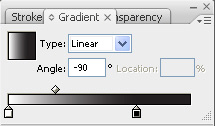
- Select the gradient rectangle and the reflected image by pressing control+A (command+A for Mac) as the original object is locked and apply a transparency mask by clicking on the arrow in the upper right of the Transparency tab.


- Drop down the transparency opacity to 40-50% to make the effect more realistic and your reflection is ready!

Note that making the reflection with Adobe Illustrator has nothing to do with the background color (like in Photoshop). Follow the same steps for applying it on dark backgrounds.

Thank you! I knew how to do reflection in photoshop, but not in ai.
great tutorial!
Awesome! I have been trying to figure out how to make the reflection effect for a long time on my own but never could figure it out. Thanks for the tutorial. Found it in a google search after fiddling with ai.
thanks a ton man!! Great tute.
Great! Thank you, quick and easy!
Thanks a ton. Very useful indeed.
that’s awesome. great tip. thank you!
Thank you for your good job!
Very nice and simple effect! thanks
Really nice, I didn’t knew that something like that could be done.
I’ve tried doing this in photoshop by following other tutorials and have always felt overwhelmed. This is by far the simplest method I think, and you explain it very well for laymen like me. Thanks!
Thanks! great tips – simple, easy and really well explained! rock on!
Thanks so much. This was easy and straightforward. I’ve had Illustrator for 5 years and could never do this outside of photoshop or InDesign. Go figure. Thanks, you’re a lifesaver.
Thanks! What an easy to follow tutorial. Four years later and still applicable.